

On July 30, 2026, the old version of this API was retired. This is the version to use.
Overview
Shinami’s Invisible Wallets abstract away Web3 elements like seed phrases, third-party wallet connections, gas fees, and signing popups. They are embedded, backend wallets under the shared custody of your app and Shinami. Both parties must cooperate in order to obtain a valid signature. You’ll find API endpoints and key usage notes below. If you ever need help you can reach out to us.Use Cases
Core use cases include app-managed NFTs or closed-loop tokens. For a breakdown of the wallets we offer and wallet use-cases, see our high-level guide.Shinami Gas Station Integration
All methods below that write to the Sui blockchain have their gas fees sponsored by you via a Gas Station you create (see the Sui Gas Station FAQ page of our Help Center for how guidance on how to set up a fund and add free Testnet Sui to it). This is because Invisible Wallets are designed to easily onboard Web2-native users (who may not want to download a wallet app, manage a seed phrase, and complete KYC checks to buy SUI for gas).Authentication, Rate Limits and Error Handling
Authentication You authenticate via an access key passed in a header (‘X-Api-Key: ACCESS_KEY’) or in the request url, e.g.https://api.us1.shinami.com/sui/wallet/v2/ACCESS_KEY. We recommend using a request header and not putting access keys in your request URLs for reduced visibility (in logs, etc). These steps are done automatically by our TypeScript SDK.
For more information, including how to set up an access key with Wallet Services rights, see our Authentication and API Keys guide.
Rate Limits
When you surpass the QPS limit for a key, we return a JSON-RPC error code -32010. We recommend implementing retries with a backoff to handle any rate limits errors that arise. You can also adjust the rate limits of your keys to better balance your QPS allotment across your keys.
Error Handling
See our Error Reference for guidance on the errors you may receive from our services, including a section on errors specific to the Invisible Wallet API.
WalletId and Secret Pairing
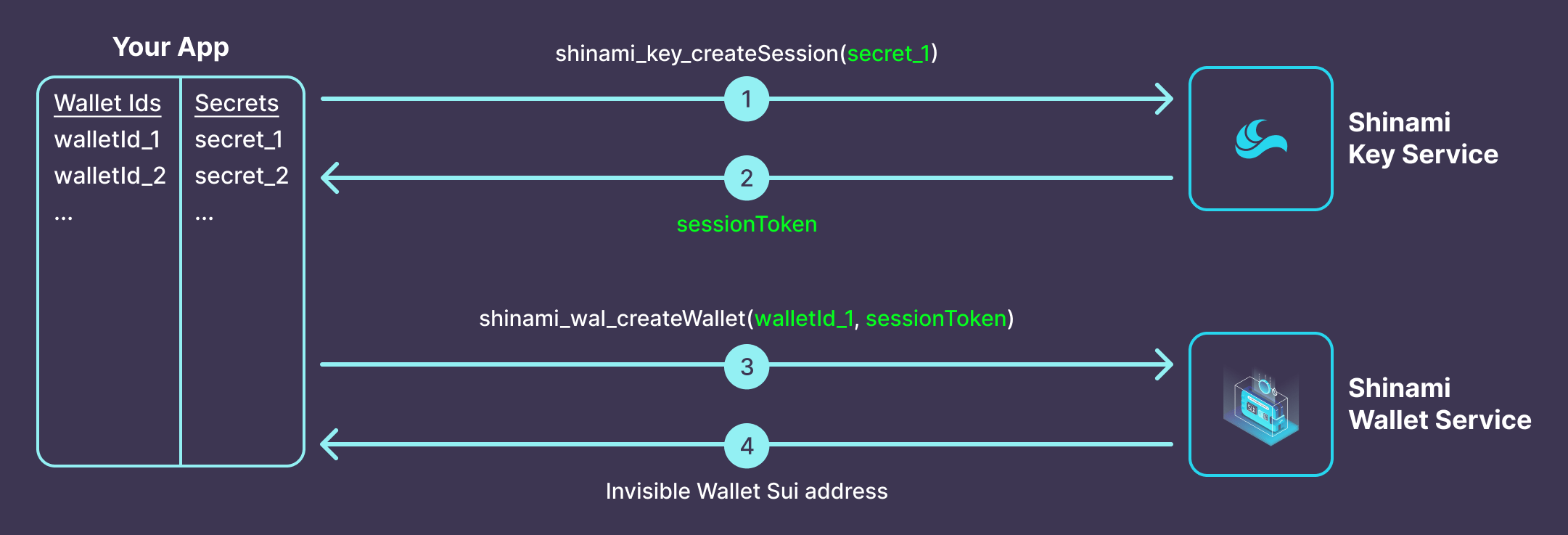
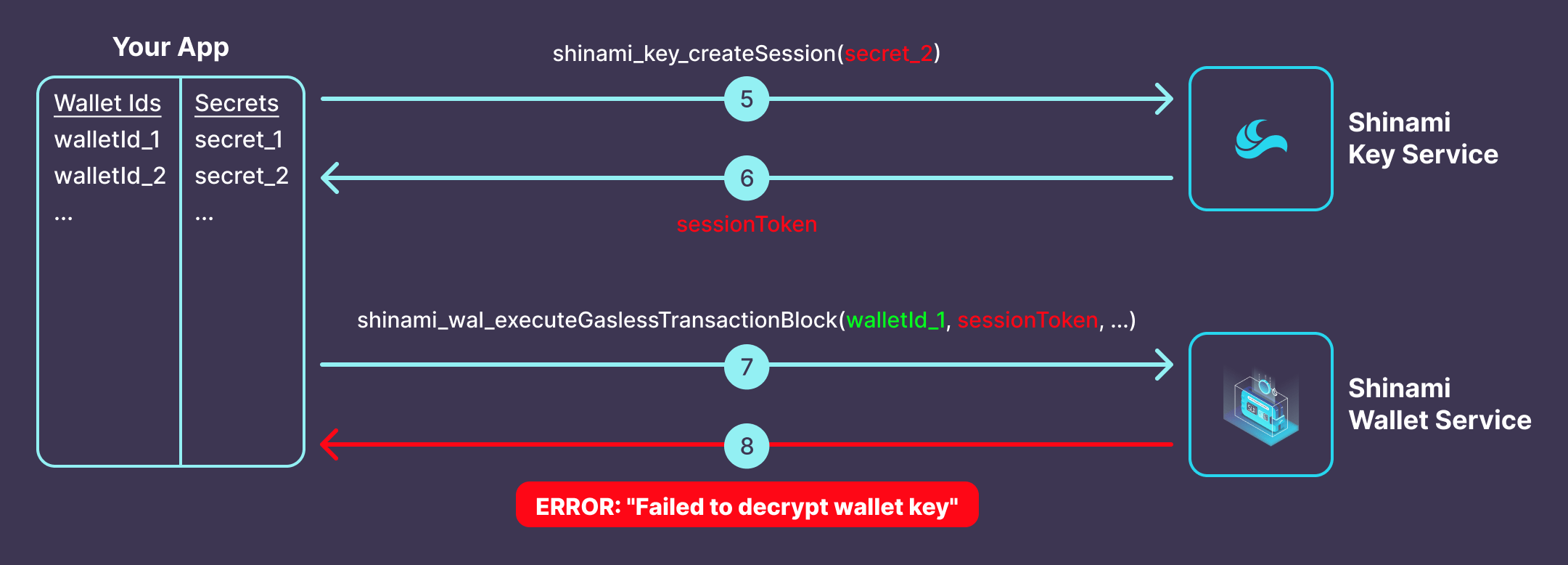
When you create an Invisible Wallet, you must create, store, link, and never change the following two values:walletId: Your internal id for a wallet. When you provide us awalletIdin a method call, it tells us which Invisible Wallet to use. It could be your internaluserIdvalue, or a new arbitrary and unique value you link to theuserId.secret: Your internal secret for a wallet. ThesessionTokenyou generate with it is combined with Shinami data to obtain a signature from the associated wallet. Ideally it would be different for each wallet so that if onesecretis compromised the rest are not.
Tutorial with E2E sample code
Check out our TypeScript tutorial for more code samples and details on the end-to-end flow of creating and using Invisible Wallets to execute sponsored transactions.Methods
shinami_key_createSession
For security purposes, you must generate a session token before you create a wallet, or sign or execute transactions. Session tokens are valid and can be reused for 10 minutes. You may also use an instance ofShinamiWalletSigner to manage session token generation and refreshes for a given wallet. This is shown in the methods below that have a sessionToken parameter in an additional sample code tab.
Request Parameters
Example Request Template
The TypeScript example uses the Shinami Clients SDK, which you can install with:
{{name}} with the actual value for that name.
shinami_wal_createWallet
Programmatically generates a unique wallet for a user that is Sui network agnostic (has the same address on Devnet, Testnet, and Mainnet). On the free tier you have a limit of wallet creations per month as shown on the “Sui Wallet Services” tab of the billing page in your dashboard (where you can also see how to upgrade if needed). If you hit this limit, you will get a JSON-RPC code-32012 and should not retry. All other wallet operations will still work for the month, like signing with wallets you’ve already created.
Request Parameters
Example Request Template
The TypeScript example uses the Shinami Clients SDK, which you can install with:
{{name}} with the actual value for that name.
shinami_wal_getWallet
Retrieve a user’s wallet address based your unique walletId value for it. Request Parameters
Example Request Template
The TypeScript example uses the Shinami Clients SDK, which you can install with:
{{name}} with the actual value for that name.
shinami_wal_signTransactionBlock
Signs a fully constructed transaction so that it can be executed. This is a low level API - it requires integration with Gas Station API for transaction sponsorship (if needed) and an RPC provider for transaction execution. This method gives you more control over how you submit transactions to Sui compared toshinami_wal_executeGaslessTransactionBlock, which sponsors, signs, and executes an Invisible Wallet transaction in one method call.
Request Parameters
Example Request Template
The TypeScript example uses the Shinami Clients SDK, which you can install with:
{{name}} with the actual value for that name.
shinami_wal_signPersonalMessage
Signs a personal message using an Invisible Wallet. The signature can be verified with thePersonalMessage intent scope. The request template below titled End-to-end example with ShinamiWalletSigner - Shinami TS SDK shows an end-to-end example of signing and a message and verifying a signature.
Request Parameters
Example Request Template
The TypeScript example uses the Shinami Clients SDK, which you can install with:
{{name}} with the actual value for that name.
shinami_wal_executeGaslessTransactionBlock
Sponsors, signs, and executes a gasless transaction from a wallet. This is a convenient end-to-end method for submitting sponsored transactions to the chain when you also use Shinami Gas Station. It sponsors the transaction using the Gas Station fund tied to the access key used to make the request. To see how to set up an Access Key with rights to all services, see our Authentication and API Keys guide. Important notes- To call this method, you need an access key that is authorized for Wallet Services and Gas Station
- You cannot use the gas object in a sponsored transaction for other purposes: For example, you cannot write
const [coin] = txb.splitCoins(txb.gas,[txb.pure(100)]);because it’s accessingtxb.gas. If you try to sponsor a TransactionKind that uses the gas object you will get a JSON-RPC-32602error back from the Gas Station sponsorship attempt. - Shinami sponsorship fees: We charge a small fee (in SUI) per sponsorship request to cover our costs. For details, visit the Billing tab in your Shinami dashboard.
After a transaction executes, read APIs (like getBalance or getObject) might not immediately show the effects. You must also wait before executing a subsequent transaction that depends on objects created or modified by the first one.
WaitForLocalExecution is not supported in gRPC. Use waitForTransaction to ensure read after write consistency.
Auto-budgeting notes
- As a part of auto-budgeting, we put your
transactionBytesthrough asimulateTransactionrequest as a free service before we attempt to sponsor it. This call will generate error messages for certain invalid transactions, such as if thetransactionBytesare transferring an object that’s not owned by thesenderaddress you provide. We’ll return these errors back to you, which should be the same as if you had made asimulateTransactionrequest yourself. We do not do this step if you manually budget, so any issues that would be caught bysimulateTransactionwill instead produce an error when you try to execute the transaction. - In the time between sponsorship and execution, shared objects can change in a way that increases their transaction cost. Therefore, we encourage you to execute sponsored transactions quickly, if possible, to ensure that the sponsorship amount is sufficient. This is why we add a larger buffer on auto-budgeted sponsorships when a shared object is involved. While we believe this buffer will work in most cases, we encourage you to monitor the success rate of your auto-budgeted transactions to gauge whether your specific use-case requires manually setting an even larger
gasBudget.
{{name}} with the actual value for that name.