Overview
Find answers below to frequently asked questions about:
Account FAQ
Login options and account linking
You can use an email+password or Sign in with Google. Here are a couple of good to knows:
-
If you sign up first with an email+password and then sign in with Google
- with the same email, we will log you into the same Shinami account+workspace.
- with a different email, will we create a new Shinami account+workspace.
-
If you sign up first with sign in with Google, and then sign in with email+password
- if you want to log into the same Shinami account+workspace with an email+password, you need to go through the sign up flow for that email+password (you can’t just click “forgot password”). Once you verify your email and create a password, you’ll be able to use both login flows to sign into the account+workspace.
Workspace FAQ
What is a workspace and where are the settings
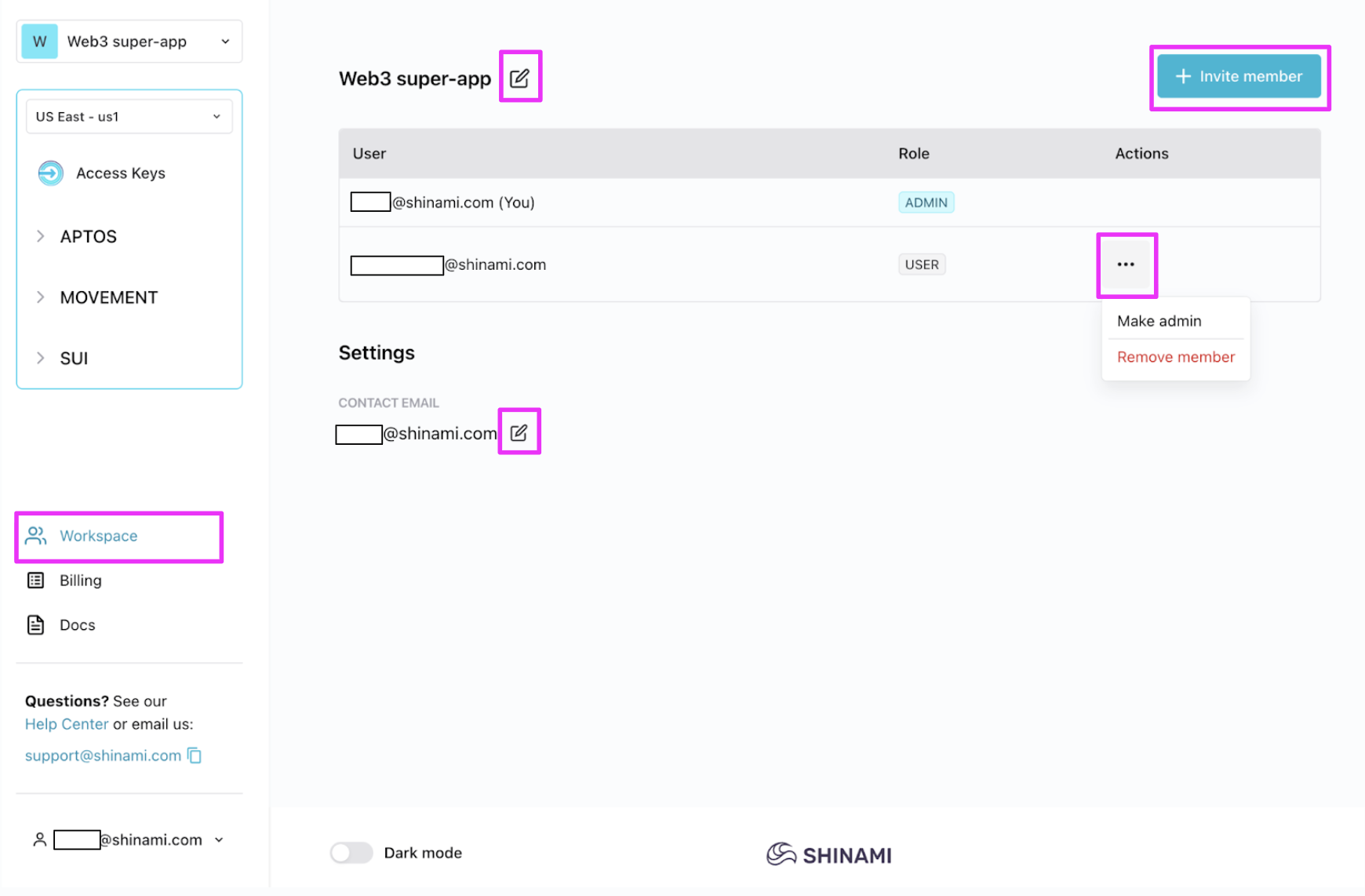
When you create a Shinami account you have a workspace where you are the admin (this includes when you join Shinami through a workspace invitation). A workspace is a set of Gas Station funds and/or wallet data, API keys, and billing information that can be shared by multiple users. You can find your workspace settings by clicking “Workspace” near bottom of the left nav to go to the workspace page :
Read below to find out how to manage your workspace!
How do I change my workspace name
Admin-only operation
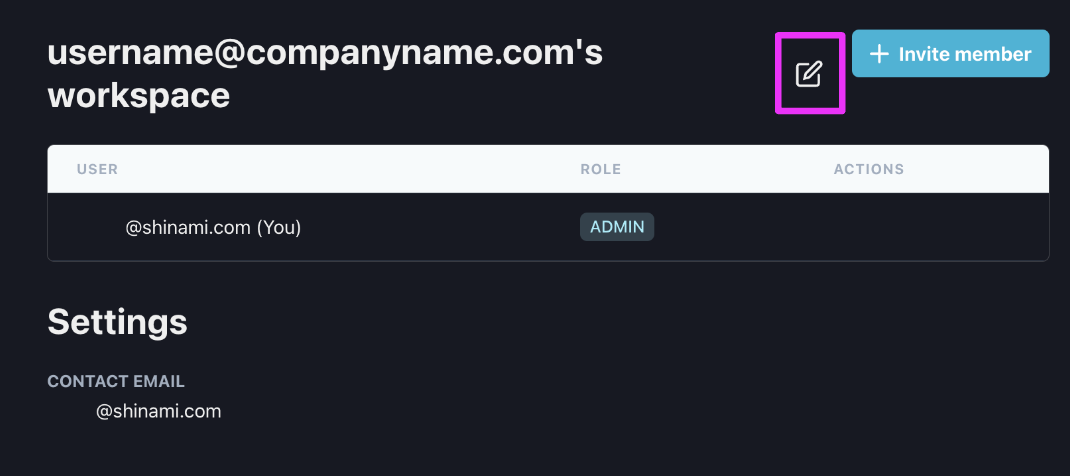
On the Workspace page of the Shinami dashboard, admins can change the name of the workspace by clicking the edit button next to the name:
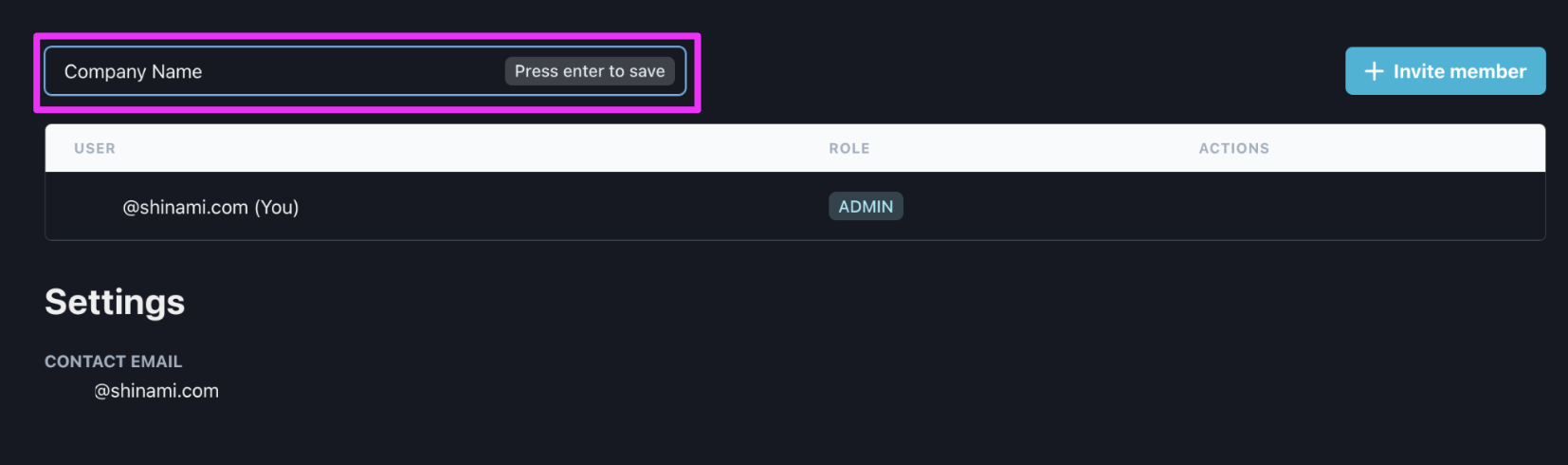
then typing in the new name:
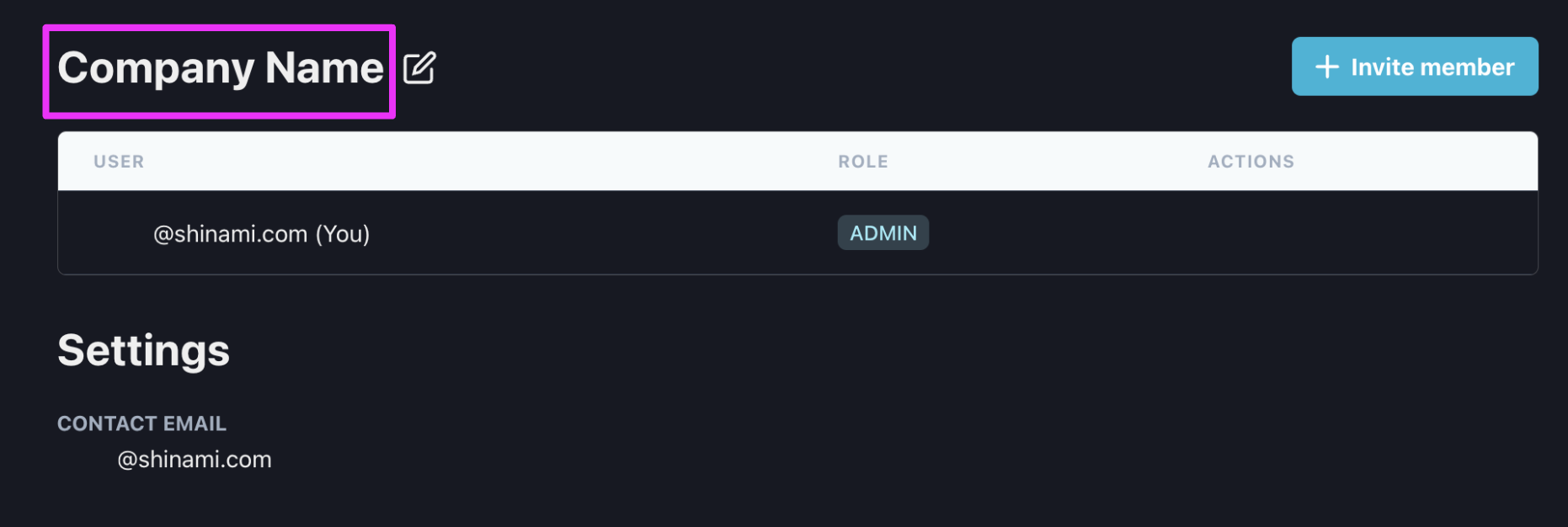
and, finally, clicking enter/return on your keyboard to save the change:
How do I invite someone to join my workspace
Admin-only operation
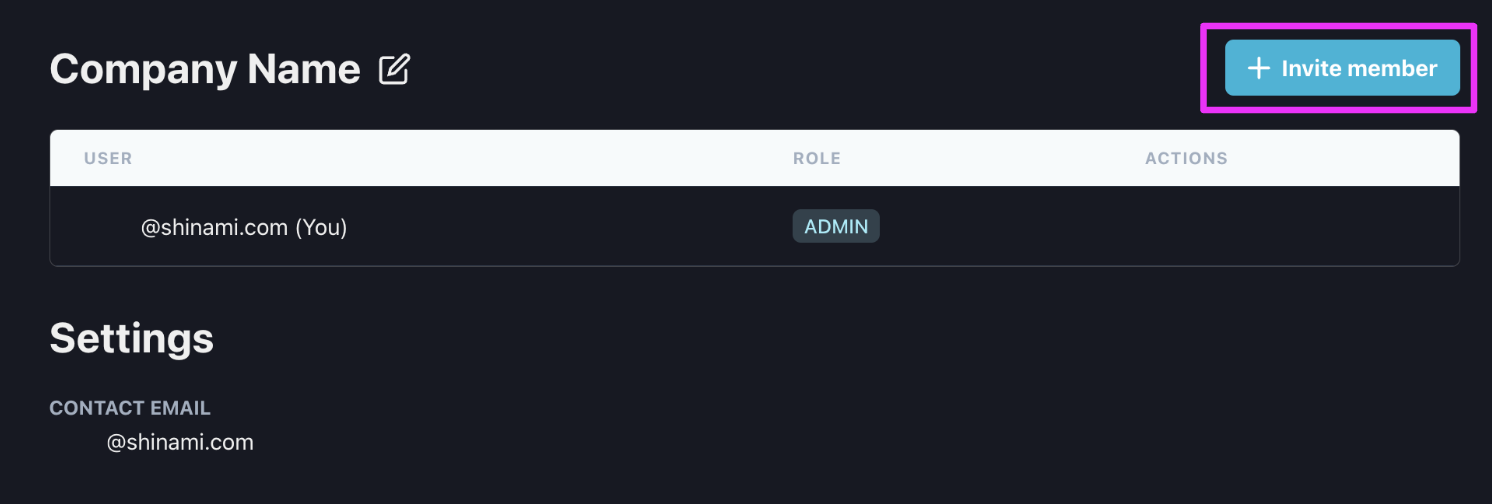
On the Workspace page of the Shinami dashboard, admins can invite others to join the team. First, click the ”+ Invite Member” button.
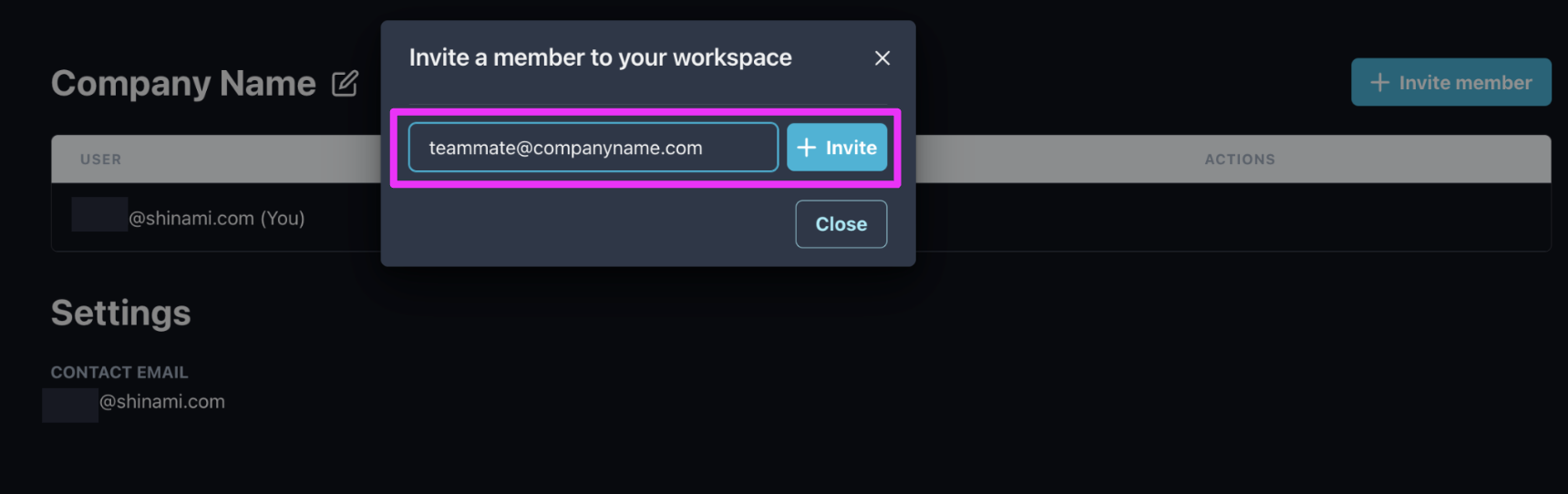
Then, in the modal that pops up, enter the email address you wish you invite and click ”+ Invite”.
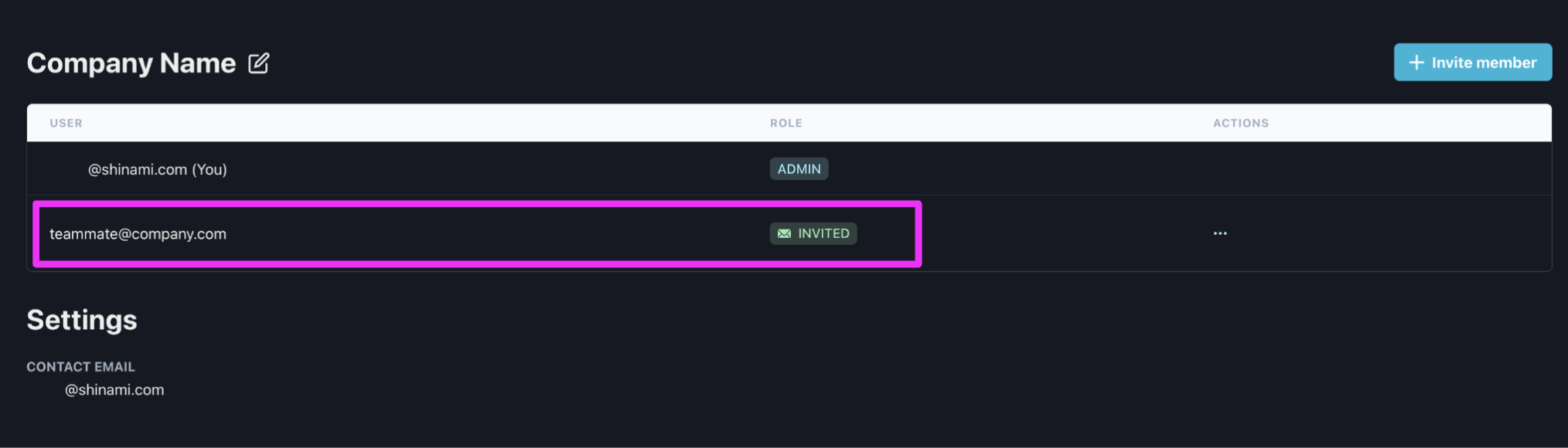
Now, you’ll see the email address in your Workspace team table with the pending status of “Invited”.
If you accidentally invite the wrong email address, you can cancel the invitation - see the next section:
How do I cancel or resend a pending invitation
Admin-only operation
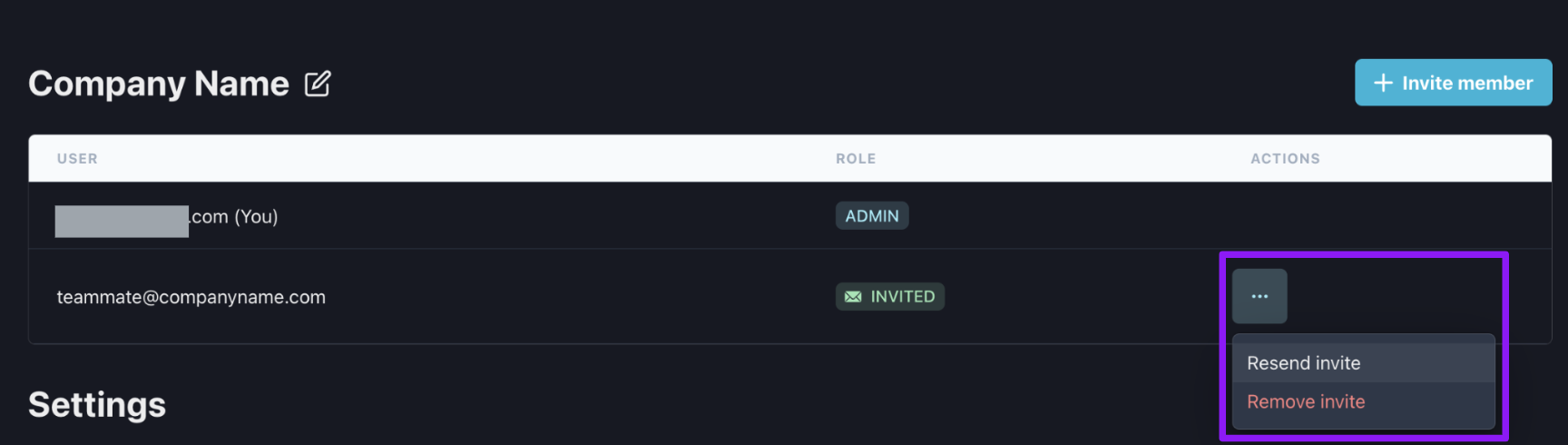
A workspace admin can cancel or resend a pending invitation on the Workspace page of the Shinami Dashboard. Click the three dots in the ACTIONS column for the user, and then click the action you wish you take.
How do I change a team member’s role or remove them
Admin-only operation
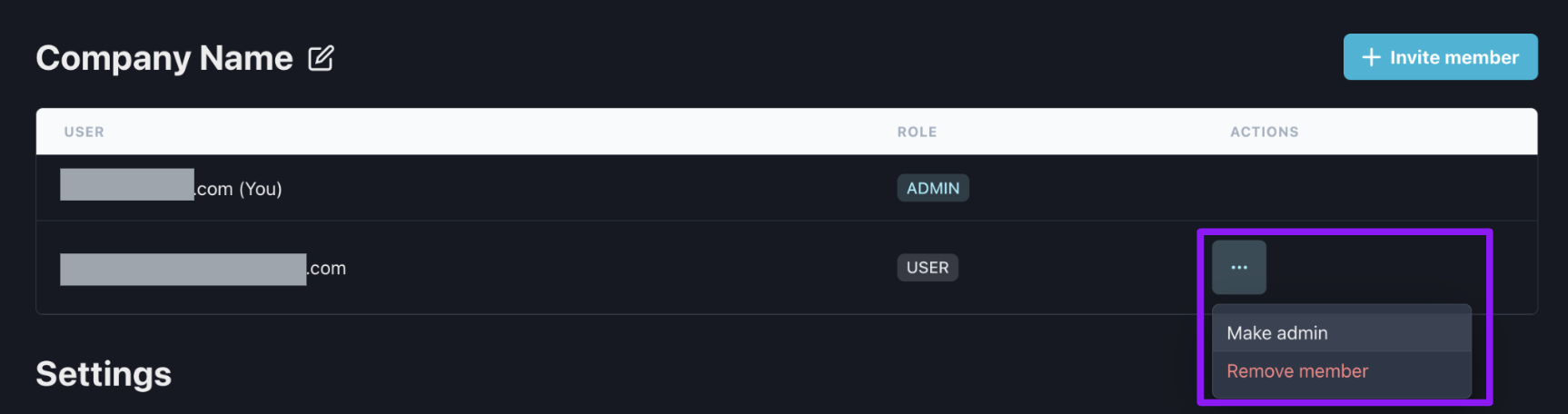
A workspace admin can change a user’s role or remove them from the workspace on the Workspace page of the Shinami Dashboard. For an existing account with the “user” role, click the three dots in the ACTIONS column for the user, and select “Make admin” or “Remove member”.
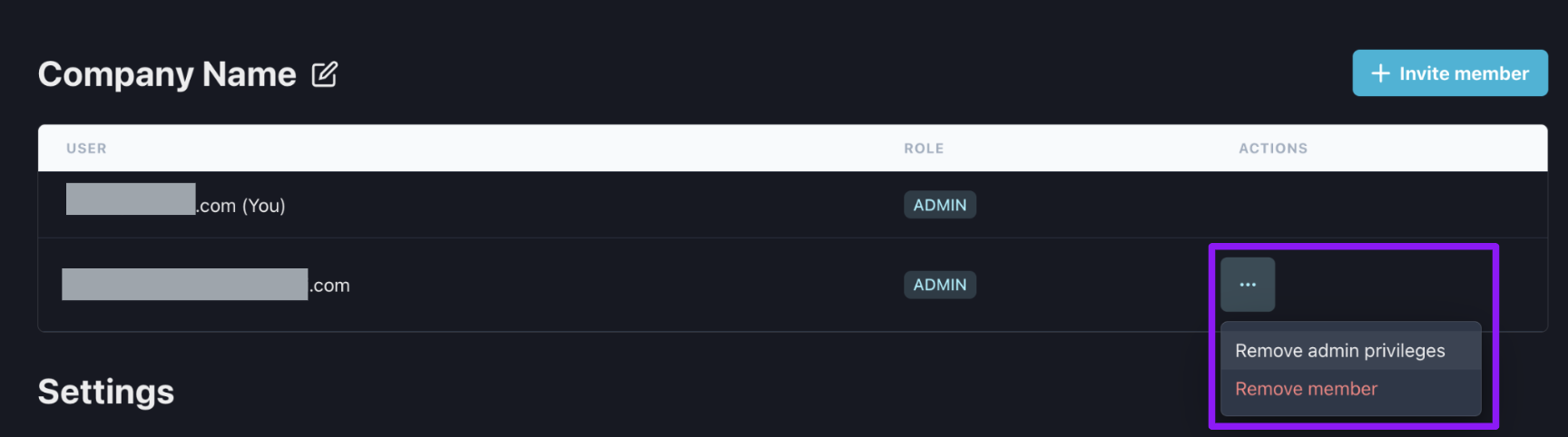
For an existing account with the “admin” role, click the three dots in the ACTIONS column for the user, and select “Remove admin privileges” or “Remove member”.
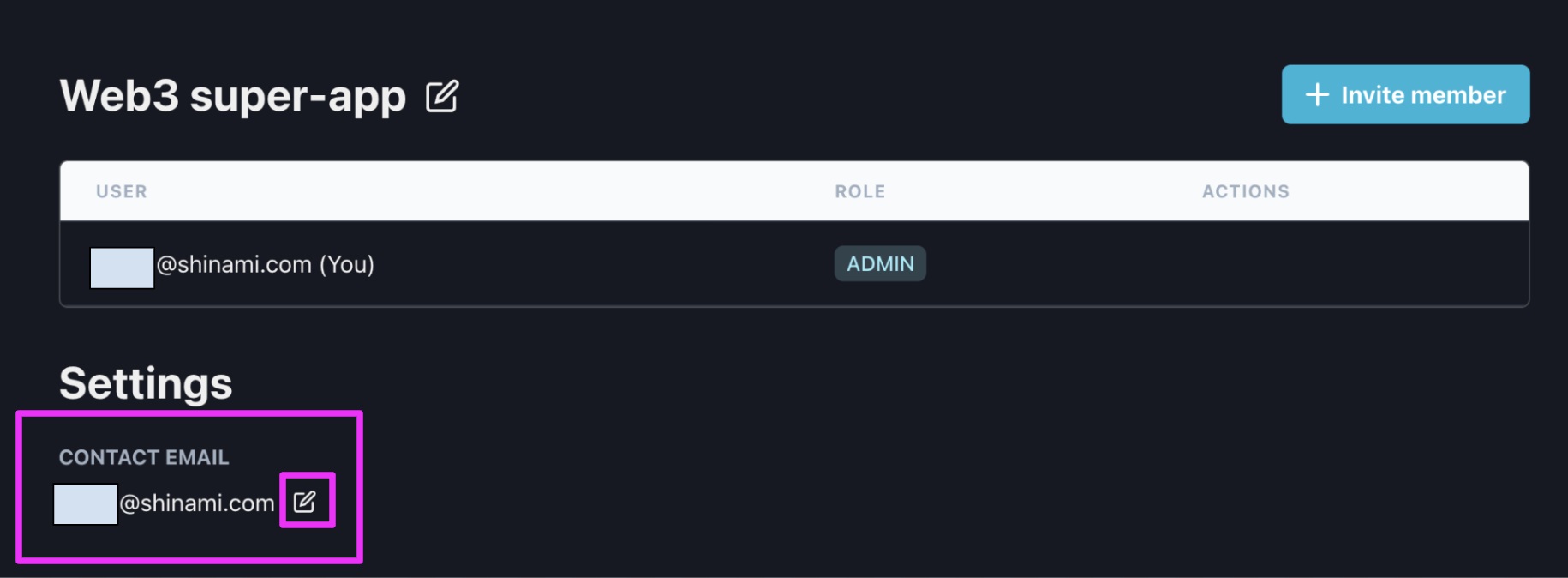
The workspace contact email is shown on under Settings on the Workspace page of your Shinami dashboard. This contact receives key emails from Shinami, such as billing emails and key product updates. By default it’s the email address that created the workspace.
Admin-only operation If this is better as another email, like [engineering@superapp.io]or [accountspayable@superapp.io], you can click the edit icon to change it. Currently, we don’t send a verification email to the new address, so make sure to double-check the value you enter!
How many people can join a workspace
Up to five members can belong to a workspace.
How many workspaces can I be a part of
Once you’ve created or joined your first workspace, you cannot create a new personal workspace with the same email address. However, there is currently no limit to the number of workspaces the same email address can be invited to and join. So, if three different Shinami workspaces invited your email address to join, you could join them all.
What can a workspace admin do that a regular user cannot
The admin role has the following permissions that regular users do not have:
Team management
- Invite a new member to the workspace.
- Cancel or resend a pending workspace invitation.
- Promote a team member to the admin role.
- Demote a team member from the admin role to the user role.
- Remove a team member from the workspace.
Workspace settings
- Change the workspace name.
Billing
- View and edit billing information.
All other actions in the console can be performed by both admin and user roles.Last modified on June 5, 2026