> ## Documentation Index
> Fetch the complete documentation index at: https://docs.shinami.com/llms.txt
> Use this file to discover all available pages before exploring further.
# zkLogin App Template (Next.js)
> How to build your first zkLogin app
## Overview
This tutorial will help you build your first Next.js zkLogin app. It uses a [starter template](https://github.com/shinamicorp/shinami-typescript-sdk/tree/main/examples/nextjs-zklogin) we've created that makes it very easy! The app uses the [Shinami Next.js zkLogin SDK](https://www.npmjs.com/package/@shinami/nextjs-zklogin) to make requests to our [zkLogin wallet API](/api-docs/sui/wallet-services/zklogin-wallet-api). It also uses [Shinami Gas Station](/api-docs/sui/gas-station/api) to sponsor transactions for the zkLogin wallets created. Sponsoring your users' transactions removes friction like completing KYC checks to buy SUI for gas. This is especially useful for zkLogin wallets since when you create one the user will not have any SUI in it (and won't even know their wallet address unless you tell them).
### Usage and Billing FAQ
Make sure to check out the Sui Wallet Services [product usage FAQ](/help-center/sui/wallet-services-faq) and [billing FAQ](/help-center/billing/sui-faq#wallet-services) in our Help Center for answers to common questions
## Tutorial Steps
**Notes:**
* This tutorial requires a Shinami account. If you do not have one, you can sign up [here](https://app.shinami.com/signup).
* We take you through the process step-by-step below, but if you get stuck you can [reach out to us](/help-center/overview#contacting-support).
### 1. Create a Shinami Gas Station fund on Testnet
See the [Sui Gas Station page of our Help Center](/help-center/sui/gas-station-faq) for guidance on how to create a fund.
### 2. Create a Shinami API access key
You'll need an API key with rights to both Wallet Services and Gas Station on Testnet. The Gas Station rights should be connected to the Gas Station fund you created in step 1. See our [Authentication and API Keys guide](/developer-guides/core-integration-topics/authentication-and-api-keys#/create-an-access-key) for guidance on how to make a key.
For security purposes, any access keys with Gas Station or Wallet Services rights should be [used only on your app backend](/developer-guides/core-integration-topics/authentication-and-api-keys#security-callout-when-to-send-from-your-backend) to prevent exposing them.
### 3. Create an OAuth client app for Twitch, Google, Apple, and/or Facebook
Below, we integrate with Twitch, Facebook, and Google, but you're only required to integrate with one. See [Mysten's doc](https://docs.sui.io/guides/developer/cryptography/zklogin-integration/developer-account) for information on how to set up a developer account and an OAuth login client app with any of the OpenID Connect providers currently supported. We didn't show a full Apple example because it requires a paid developer account which you may not have, but we add a few key notes about Apple integration below.
#### Twitch
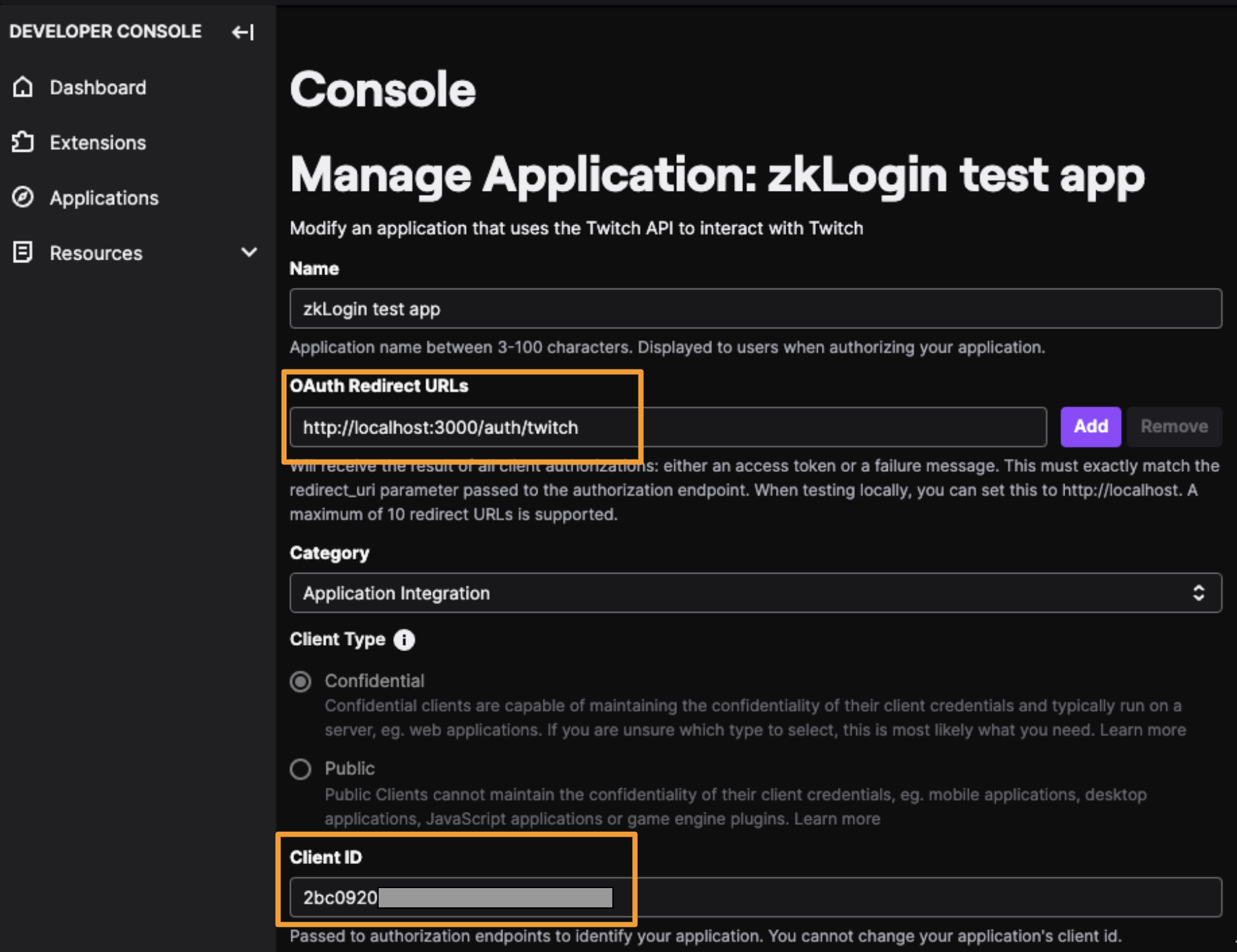
The redirect URL to set up in the [Twitch developer console](https://dev.twitch.tv/console) for your app is `http://localhost:3000/auth/twitch`. You'll also need to copy the Client ID value that Twitch assigns your app to use as an environmental variable in the next step.
 #### Facebook
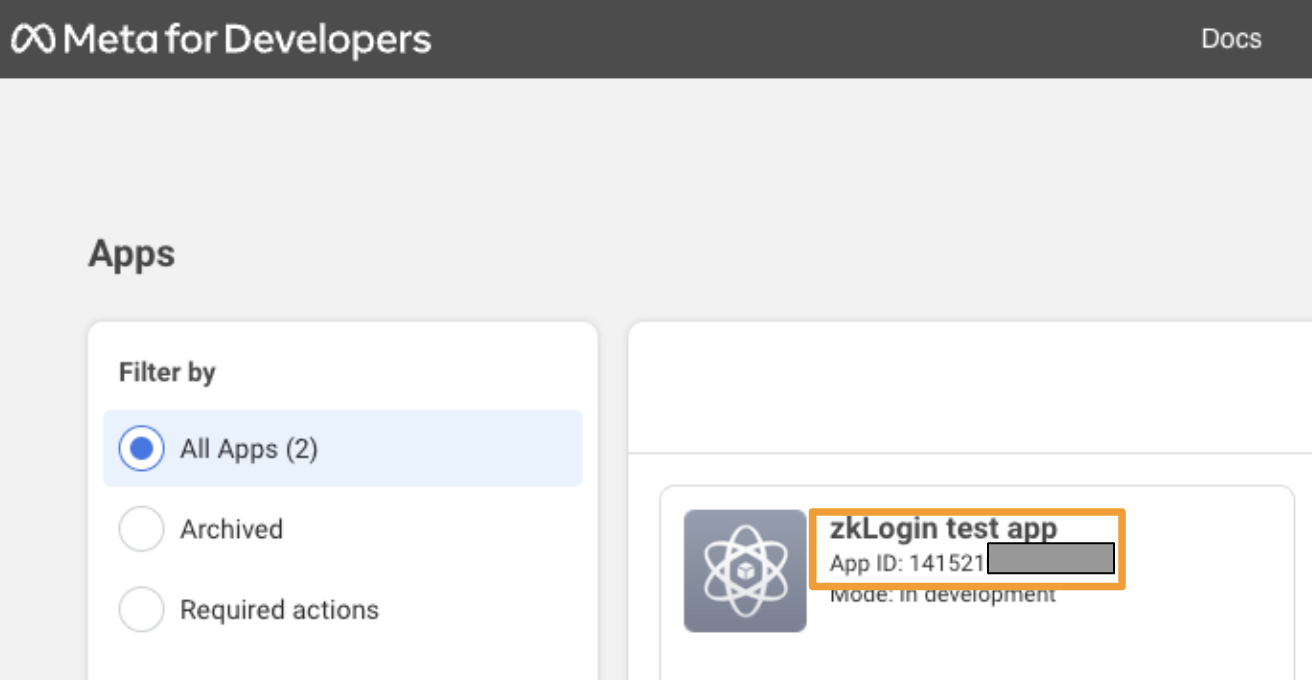
For your app in the [Facebook developer console](https://developers.facebook.com/apps/), `http://localhost:3000` is automatically allowed as a redirect URI and doesn't need to be explicitly set. You'll also need to copy the App ID value Facebook assigns your app to use as an environmental variable in the next step.
#### Facebook
For your app in the [Facebook developer console](https://developers.facebook.com/apps/), `http://localhost:3000` is automatically allowed as a redirect URI and doesn't need to be explicitly set. You'll also need to copy the App ID value Facebook assigns your app to use as an environmental variable in the next step.
 #### Google
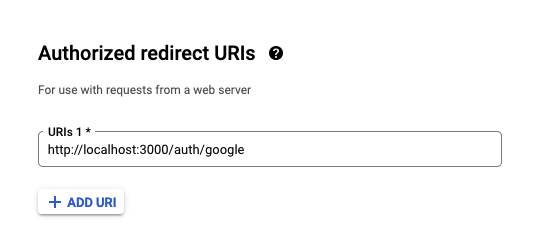
For your [Google app](https://console.cloud.google.com) , you'll need to set the redirect URI to: `http://localhost:3000/auth/google`.
#### Google
For your [Google app](https://console.cloud.google.com) , you'll need to set the redirect URI to: `http://localhost:3000/auth/google`.
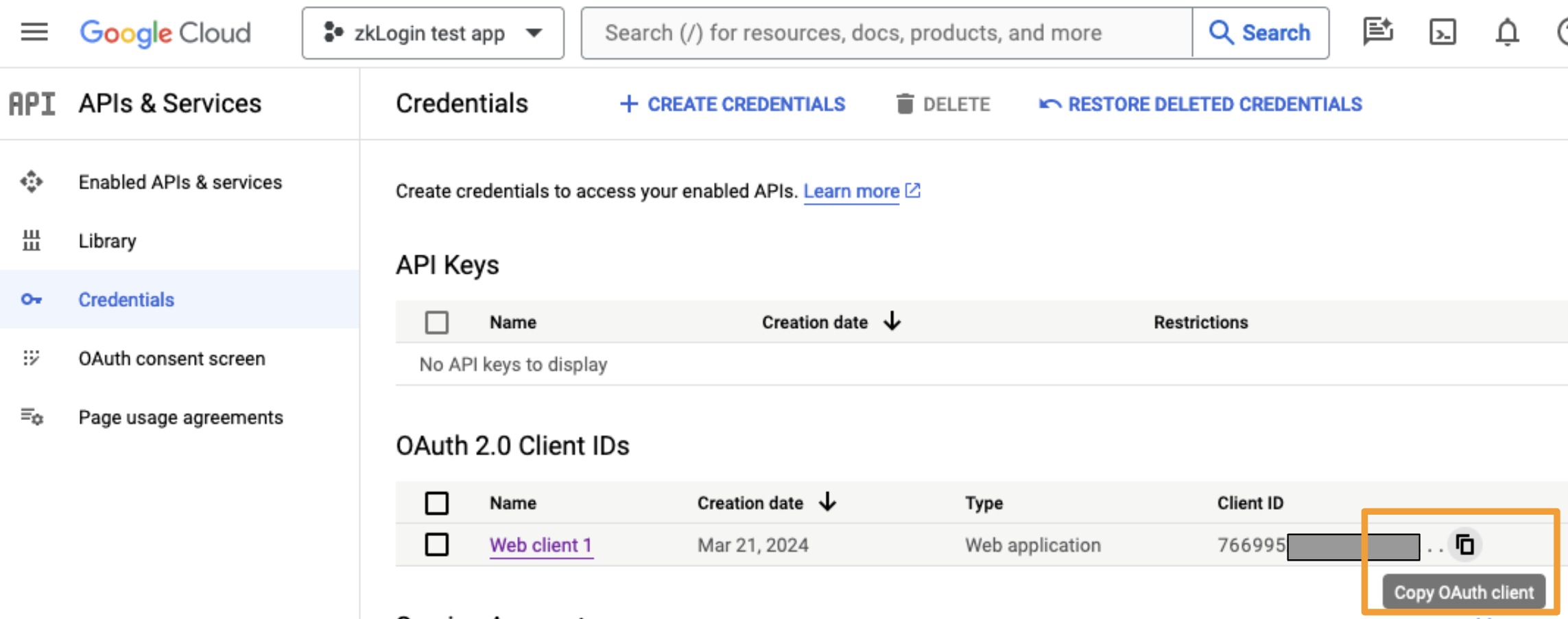
 You'll also need to copy the App ID value that Google assigns your app to use as an environmental variable in the next step.
 #### Apple
For Apple, you must authorize a slightly different redirect URI (note the `api/` prefix): `https:///api/auth/apple`.
Note that Apple doesn't support either localhost or http. Thus for local testing, you'll need to access the dev server on a mock domain, either by modifying `/etc/hosts` (e.g. adding `127.0.0.1 my-local-site.com`) or through a tunneling service such as [ngrok](https://ngrok.com/). Either way, you must authorize the resulting URL on your Sign in with Apple application.
### 4. Download and configure the sample project
**Download**
This project is located on [github](https://github.com/shinamicorp/shinami-typescript-sdk/tree/main/examples/nextjs-zklogin). You can use [npm](https://docs.npmjs.com/cli/v10/commands/npm-init), [Yarn](https://classic.yarnpkg.com/en/docs/cli/create/), or [pnpm](https://pnpm.io/) to bootstrap the example:
```bash Shell theme={null}
npx create-next-app --example https://github.com/shinamicorp/shinami-typescript-sdk/tree/main/examples/nextjs-zklogin my-zklogin-app
yarn create next-app --example https://github.com/shinamicorp/shinami-typescript-sdk/tree/main/examples/nextjs-zklogin my-zklogin-app
```
**Configure**
Next, you need to set the values for key environmental variables for the project. These should be in a `.env.local` file which should not committed to git since it contains sensitive information like API access key values. In the root directory of the project, run `cp .env .env.local` on the command line to make a `.env.local` file that's a copy of the `.env` file. Below, we show how to fill in values for the new `.env.local` file.
You'll need to make four changes to the file:
1. For each OpenID Connect provider you created a client app with, uncomment the associated `NEXT_PUBLIC_*_CLIENT_ID` variable and set the value to the associated client/app ID. In my examples above, the partial ID values are `2bc0920` for Twitch, `141521` for Facebook, and `766995` for Google. Use your own client/app id values, which will be longer.
2. Uncomment the `IRON_SESSION_SECRET` variable and generate a session secret, e.g. with `openssl rand -hex 32` on the command line. Example output is `bdd51e3b307c7cdae48c3dd2ce83f5e7a0b6db10fdeea0b4d5990f857c156dd7` (but don't share your secrets!)
3. Uncomment the `SHINAMI_SUPER_ACCESS_KEY` variable and set it to the Testnet access key you created with rights to `Wallet Services` and `Gas Station`. Let's imagine it's `sui_testnet_abc123`. This is too short for a real key. Also, do not expose your keys! This key will only be used on the backend, as should be done with any Shinami API access key with Gas Station or Wallet Service rights.
Open the file and fill in those values:
```bash Shell expandable theme={null}
# OAuth application configs. Configure the ones you want to support. They'll serve as both the auth
# mechanism for this app and transaction signing mechanism (zkLogin). Note that if you have multiple
# providers configured, the same person will be considered a different user for each provider they
# log in with (with different zkLogin wallets), even if they may share the same email.
#
# Refer to this link for instructions on setting up these OAuth applications:
# https://docs.sui.io/guides/developer/cryptography/zklogin-integration/developer-account
#
NEXT_PUBLIC_GOOGLE_CLIENT_ID='766995'
NEXT_PUBLIC_FACEBOOK_CLIENT_ID='141521'
NEXT_PUBLIC_TWITCH_CLIENT_ID='2bc0920'
# NEXT_PUBLIC_APPLE_CLIENT_ID=''
# Example command to generate random secrets:
# openssl rand -hex 32
#
# IRON_SESSION_SECRET='bdd51e3b307c7cdae48c3dd2ce83f5e7a0b6db10fdeea0b4d5990f857c156dd7'
# Obtain your Shinami access keys from https://app.shinami.com.
# The example code uses Shinami gas station and wallet services.
#
SHINAMI_SUPER_ACCESS_KEY='sui_testnet_abc123'
# Optional: override the Sui RPC endpoint for backend use.
# Defaults to the Mysten public fullnode for NEXT_PUBLIC_SUI_NETWORK.
# SUI_RPC_URL='https://fullnode.testnet.sui.io:443'
# Optional: override the Sui RPC endpoint for frontend use.
# Defaults to the Mysten public fullnode for NEXT_PUBLIC_SUI_NETWORK.
# NEXT_PUBLIC_SUI_RPC_URL='https://fullnode.testnet.sui.io:443'
# 'devnet', 'testnet', or 'mainnet'
NEXT_PUBLIC_SUI_NETWORK='testnet'
# This example package is deployed on testnet.
# Source code: https://github.com/shinamicorp/shinami-typescript-sdk/tree/main/examples/sui-move
EXAMPLE_MOVE_PACKAGE_ID='0xd8f042479dcb0028d868051bd53f0d3a41c600db7b14241674db1c2e60124975'
```
We've included the address of a [Move package we've deployed to Testnet](https://testnet.suivision.xyz/package/0xd8f042479dcb0028d868051bd53f0d3a41c600db7b14241674db1c2e60124975?tab=Code) so that your sample project can interact with it, via the environmental variable `EXAMPLE_MOVE_PACKAGE_ID`. This package has a public entry function that takes two numbers and adds them together (I know, super exciting!).
Beyond this, our starter template [sets the maxEpoch value](https://github.com/shinamicorp/shinami-typescript-sdk/blob/9a59e0e241198721a2e3d9ca30896d4ea7d60a1e/examples/nextjs-zklogin/pages/auth/login.tsx#L21), which determines the expiration time of the ephemeral KeyPair, to current epoch + 1. This means that when the Sui epoch number moves above that value, a new ephemeral KeyPair and thus JWT will be needed, so the user will need to complete the OpenID authentication flow again. If you instead use `relativeToCurrentEpoch(sui, 0)` for example, the ephemeral KeyPair will expire when the current Sui epoch does. For more on KeyPair expiration, see [Sui Foundation's zkLogin doc](https://docs.sui.io/concepts/cryptography/zklogin#get-jwt-token).
### 5. Run and interact with the app
#### Run the app and login
Now, you can run the project! On the command line, run `npm run dev` . Then, visit [http://localhost:3000](http://localhost:3000) in your browser and you'll be greeted with prompt to sign in.
#### Apple
For Apple, you must authorize a slightly different redirect URI (note the `api/` prefix): `https:///api/auth/apple`.
Note that Apple doesn't support either localhost or http. Thus for local testing, you'll need to access the dev server on a mock domain, either by modifying `/etc/hosts` (e.g. adding `127.0.0.1 my-local-site.com`) or through a tunneling service such as [ngrok](https://ngrok.com/). Either way, you must authorize the resulting URL on your Sign in with Apple application.
### 4. Download and configure the sample project
**Download**
This project is located on [github](https://github.com/shinamicorp/shinami-typescript-sdk/tree/main/examples/nextjs-zklogin). You can use [npm](https://docs.npmjs.com/cli/v10/commands/npm-init), [Yarn](https://classic.yarnpkg.com/en/docs/cli/create/), or [pnpm](https://pnpm.io/) to bootstrap the example:
```bash Shell theme={null}
npx create-next-app --example https://github.com/shinamicorp/shinami-typescript-sdk/tree/main/examples/nextjs-zklogin my-zklogin-app
yarn create next-app --example https://github.com/shinamicorp/shinami-typescript-sdk/tree/main/examples/nextjs-zklogin my-zklogin-app
```
**Configure**
Next, you need to set the values for key environmental variables for the project. These should be in a `.env.local` file which should not committed to git since it contains sensitive information like API access key values. In the root directory of the project, run `cp .env .env.local` on the command line to make a `.env.local` file that's a copy of the `.env` file. Below, we show how to fill in values for the new `.env.local` file.
You'll need to make four changes to the file:
1. For each OpenID Connect provider you created a client app with, uncomment the associated `NEXT_PUBLIC_*_CLIENT_ID` variable and set the value to the associated client/app ID. In my examples above, the partial ID values are `2bc0920` for Twitch, `141521` for Facebook, and `766995` for Google. Use your own client/app id values, which will be longer.
2. Uncomment the `IRON_SESSION_SECRET` variable and generate a session secret, e.g. with `openssl rand -hex 32` on the command line. Example output is `bdd51e3b307c7cdae48c3dd2ce83f5e7a0b6db10fdeea0b4d5990f857c156dd7` (but don't share your secrets!)
3. Uncomment the `SHINAMI_SUPER_ACCESS_KEY` variable and set it to the Testnet access key you created with rights to `Wallet Services` and `Gas Station`. Let's imagine it's `sui_testnet_abc123`. This is too short for a real key. Also, do not expose your keys! This key will only be used on the backend, as should be done with any Shinami API access key with Gas Station or Wallet Service rights.
Open the file and fill in those values:
```bash Shell expandable theme={null}
# OAuth application configs. Configure the ones you want to support. They'll serve as both the auth
# mechanism for this app and transaction signing mechanism (zkLogin). Note that if you have multiple
# providers configured, the same person will be considered a different user for each provider they
# log in with (with different zkLogin wallets), even if they may share the same email.
#
# Refer to this link for instructions on setting up these OAuth applications:
# https://docs.sui.io/guides/developer/cryptography/zklogin-integration/developer-account
#
NEXT_PUBLIC_GOOGLE_CLIENT_ID='766995'
NEXT_PUBLIC_FACEBOOK_CLIENT_ID='141521'
NEXT_PUBLIC_TWITCH_CLIENT_ID='2bc0920'
# NEXT_PUBLIC_APPLE_CLIENT_ID=''
# Example command to generate random secrets:
# openssl rand -hex 32
#
# IRON_SESSION_SECRET='bdd51e3b307c7cdae48c3dd2ce83f5e7a0b6db10fdeea0b4d5990f857c156dd7'
# Obtain your Shinami access keys from https://app.shinami.com.
# The example code uses Shinami gas station and wallet services.
#
SHINAMI_SUPER_ACCESS_KEY='sui_testnet_abc123'
# Optional: override the Sui RPC endpoint for backend use.
# Defaults to the Mysten public fullnode for NEXT_PUBLIC_SUI_NETWORK.
# SUI_RPC_URL='https://fullnode.testnet.sui.io:443'
# Optional: override the Sui RPC endpoint for frontend use.
# Defaults to the Mysten public fullnode for NEXT_PUBLIC_SUI_NETWORK.
# NEXT_PUBLIC_SUI_RPC_URL='https://fullnode.testnet.sui.io:443'
# 'devnet', 'testnet', or 'mainnet'
NEXT_PUBLIC_SUI_NETWORK='testnet'
# This example package is deployed on testnet.
# Source code: https://github.com/shinamicorp/shinami-typescript-sdk/tree/main/examples/sui-move
EXAMPLE_MOVE_PACKAGE_ID='0xd8f042479dcb0028d868051bd53f0d3a41c600db7b14241674db1c2e60124975'
```
We've included the address of a [Move package we've deployed to Testnet](https://testnet.suivision.xyz/package/0xd8f042479dcb0028d868051bd53f0d3a41c600db7b14241674db1c2e60124975?tab=Code) so that your sample project can interact with it, via the environmental variable `EXAMPLE_MOVE_PACKAGE_ID`. This package has a public entry function that takes two numbers and adds them together (I know, super exciting!).
Beyond this, our starter template [sets the maxEpoch value](https://github.com/shinamicorp/shinami-typescript-sdk/blob/9a59e0e241198721a2e3d9ca30896d4ea7d60a1e/examples/nextjs-zklogin/pages/auth/login.tsx#L21), which determines the expiration time of the ephemeral KeyPair, to current epoch + 1. This means that when the Sui epoch number moves above that value, a new ephemeral KeyPair and thus JWT will be needed, so the user will need to complete the OpenID authentication flow again. If you instead use `relativeToCurrentEpoch(sui, 0)` for example, the ephemeral KeyPair will expire when the current Sui epoch does. For more on KeyPair expiration, see [Sui Foundation's zkLogin doc](https://docs.sui.io/concepts/cryptography/zklogin#get-jwt-token).
### 5. Run and interact with the app
#### Run the app and login
Now, you can run the project! On the command line, run `npm run dev` . Then, visit [http://localhost:3000](http://localhost:3000) in your browser and you'll be greeted with prompt to sign in.
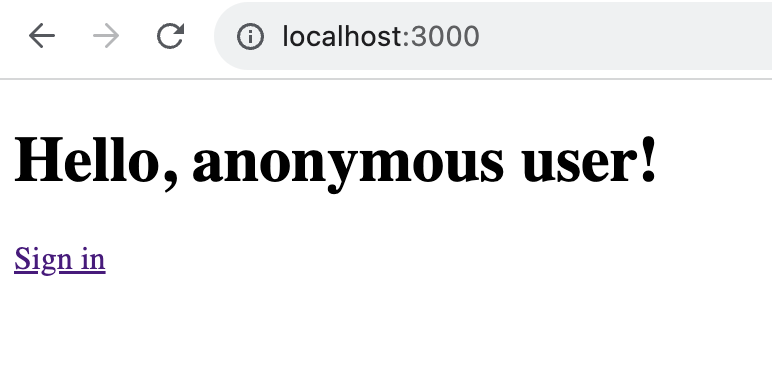 Click "Sign in", and you'll see an option for each of the OpenID Connect providers you have a `*_CLIENT_ID` environmental variable for. Since we didn't set a value for Apple but did for the other three, we see the following:
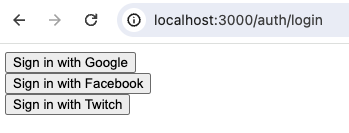 Choose one and log in. For me, I chose Twitch:
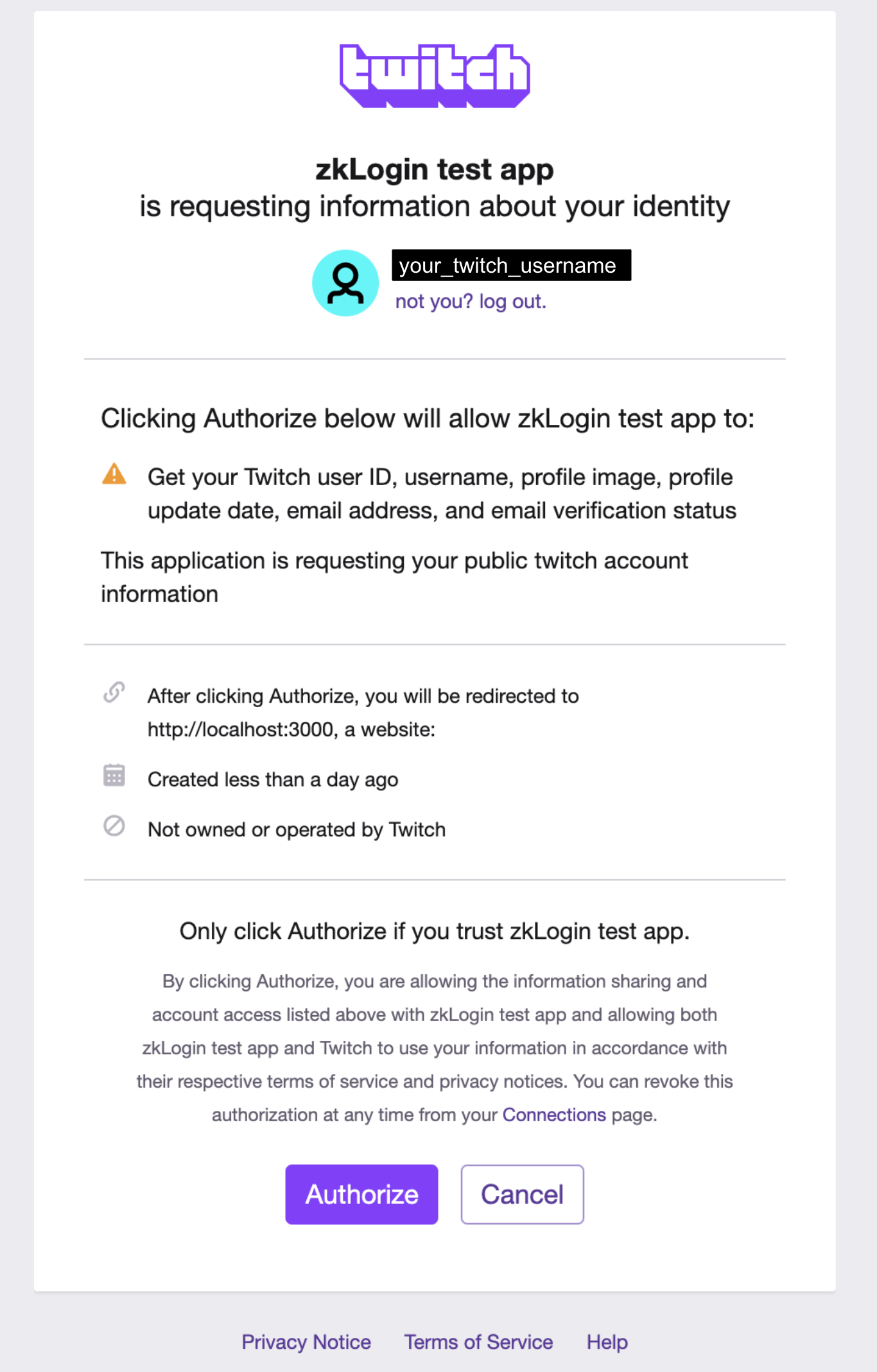 After clicking "Authorize", wait a few seconds for the OpenID Connect flow to complete.
#### Make a Move function call
Now, you should be successfully logged in and see the following:
After clicking "Authorize", wait a few seconds for the OpenID Connect flow to complete.
#### Make a Move function call
Now, you should be successfully logged in and see the following:
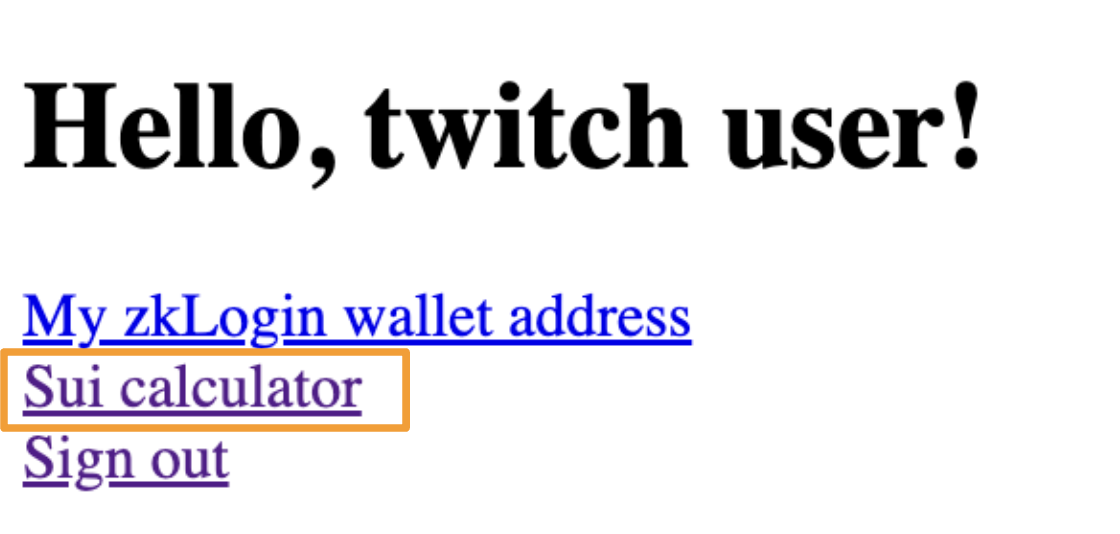 Click "Sui calculator". You'll see:
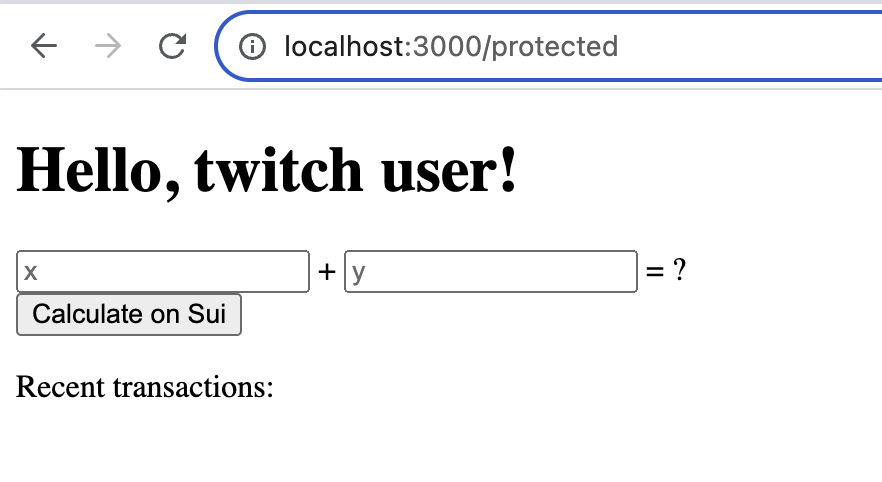 When you enter values and click "Calculate on Sui":
1. The frontend grabs the numbers the user entered (which will be the arguments to the Move function call) and [sends a request](https://github.com/shinamicorp/shinami-typescript-sdk/blob/951cdfeb9494f950506df2dff961583f542096c7/examples/nextjs-zklogin/pages/protected.tsx#L30) to the `/api/add/tx` endpoint via a [via a mutation](https://github.com/shinamicorp/shinami-typescript-sdk/blob/951cdfeb9494f950506df2dff961583f542096c7/examples/nextjs-zklogin/lib/hooks/api.ts#L27).
When you enter values and click "Calculate on Sui":
1. The frontend grabs the numbers the user entered (which will be the arguments to the Move function call) and [sends a request](https://github.com/shinamicorp/shinami-typescript-sdk/blob/951cdfeb9494f950506df2dff961583f542096c7/examples/nextjs-zklogin/pages/protected.tsx#L30) to the `/api/add/tx` endpoint via a [via a mutation](https://github.com/shinamicorp/shinami-typescript-sdk/blob/951cdfeb9494f950506df2dff961583f542096c7/examples/nextjs-zklogin/lib/hooks/api.ts#L27).
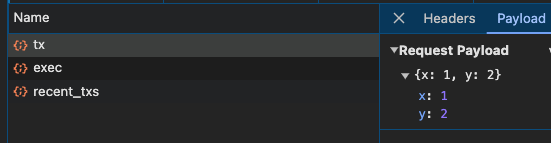 2. The backend [generates the gasless transaction](https://github.com/shinamicorp/shinami-typescript-sdk/blob/main/examples/nextjs-zklogin/pages/api/add/%5B...api%5D.ts#L23) and then makes a request to Shinami Gas Station to [sponsor the transaction](https://github.com/shinamicorp/shinami-typescript-sdk/blob/main/packages/nextjs-zklogin/src/server/pages/tx.ts#L73) using the Testnet fund linked to the `SHINAMI_SUPER_ACCESS_KEY` you provided.
3. The frontend [signs](https://github.com/shinamicorp/shinami-typescript-sdk/blob/951cdfeb9494f950506df2dff961583f542096c7/packages/nextjs-zklogin/src/client/hooks/tx.ts#L45) the sponsored transaction with the zkLogin wallet's ephemeral KeyPair. And then makes a request to the `/api/add/tx` endpoint.
4. The Backend [assembles the zkLogin signature](https://github.com/shinamicorp/shinami-typescript-sdk/blob/main/packages/nextjs-zklogin/src/server/pages/tx.ts#L95) and then uses free Mysten node service service to submit the transaction to the Sui Testnet with `sui_executeTransactionBlock`.
For a helpful image of the full zkLogin flow, see the [Sui Foundation's zkLogin doc](https://docs.sui.io/concepts/cryptography/zklogin#the-complete-zklogin-flow)
Assuming you have added SUI to your Gas Station, enter 1 + 2, click "Calculate on Sui" and wait a few seconds. During the processing, you'll see output like the following in the terminal window running the project: `Preparing add tx for zkLogin wallet 0x6a7b07da9d2c210bbbe044dbe222225ae20dd4584a4d8ee9a804839f8256ea3c`. Then, shortly thereafter, you'll see the result and the associated transaction digest (your digest will be different):
2. The backend [generates the gasless transaction](https://github.com/shinamicorp/shinami-typescript-sdk/blob/main/examples/nextjs-zklogin/pages/api/add/%5B...api%5D.ts#L23) and then makes a request to Shinami Gas Station to [sponsor the transaction](https://github.com/shinamicorp/shinami-typescript-sdk/blob/main/packages/nextjs-zklogin/src/server/pages/tx.ts#L73) using the Testnet fund linked to the `SHINAMI_SUPER_ACCESS_KEY` you provided.
3. The frontend [signs](https://github.com/shinamicorp/shinami-typescript-sdk/blob/951cdfeb9494f950506df2dff961583f542096c7/packages/nextjs-zklogin/src/client/hooks/tx.ts#L45) the sponsored transaction with the zkLogin wallet's ephemeral KeyPair. And then makes a request to the `/api/add/tx` endpoint.
4. The Backend [assembles the zkLogin signature](https://github.com/shinamicorp/shinami-typescript-sdk/blob/main/packages/nextjs-zklogin/src/server/pages/tx.ts#L95) and then uses free Mysten node service service to submit the transaction to the Sui Testnet with `sui_executeTransactionBlock`.
For a helpful image of the full zkLogin flow, see the [Sui Foundation's zkLogin doc](https://docs.sui.io/concepts/cryptography/zklogin#the-complete-zklogin-flow)
Assuming you have added SUI to your Gas Station, enter 1 + 2, click "Calculate on Sui" and wait a few seconds. During the processing, you'll see output like the following in the terminal window running the project: `Preparing add tx for zkLogin wallet 0x6a7b07da9d2c210bbbe044dbe222225ae20dd4584a4d8ee9a804839f8256ea3c`. Then, shortly thereafter, you'll see the result and the associated transaction digest (your digest will be different):
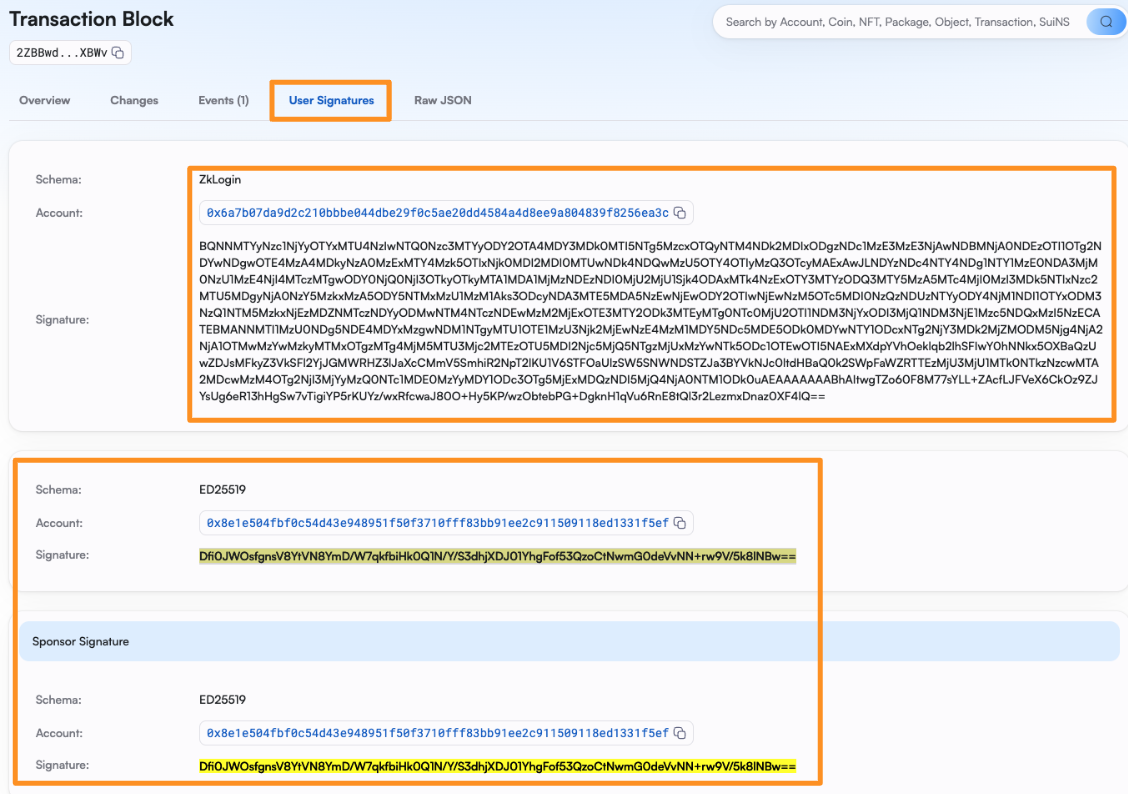
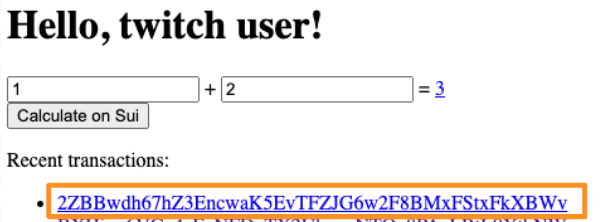 Clicking on the transaction digest link will take you to the transaction in the SuiVision explorer. If you choose the "User Signatures" tab, you'll see that two signatures were submitted - a zkLogin signature from the sender (your zkLogin wallet) and an ED25519 gas sponsor signature from Shinami's Gas Station:
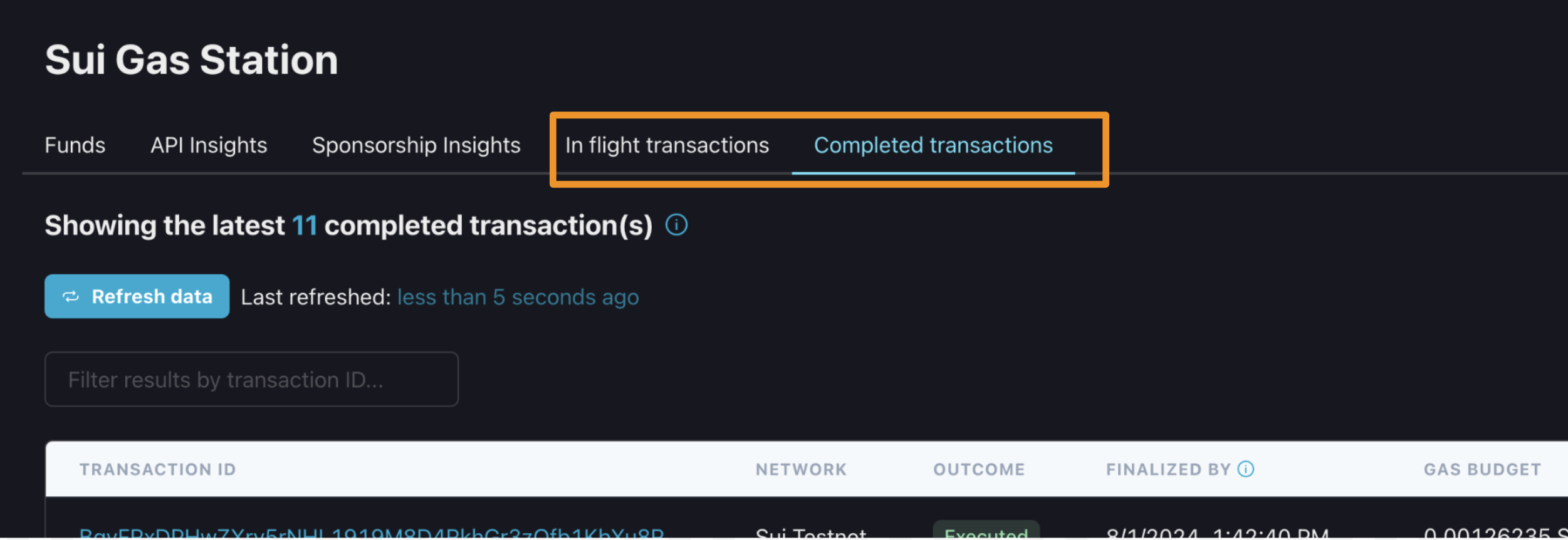
 If you visit the ["Completed transactions" tab of the Sui Gas Station page](https://app.shinami.com/sui/gas/#sui_gas_completed_tx) of your Shinami dashboard you can see the transaction you just executed.
Note, though, that sponsored transactions can remain in the "In flight transactions" tab after a successful execution for a minute or so (until our gas object cleanup job runs). So, check that tab if needed.
If you visit the ["Completed transactions" tab of the Sui Gas Station page](https://app.shinami.com/sui/gas/#sui_gas_completed_tx) of your Shinami dashboard you can see the transaction you just executed.
Note, though, that sponsored transactions can remain in the "In flight transactions" tab after a successful execution for a minute or so (until our gas object cleanup job runs). So, check that tab if needed.
 #### A note on zkLogin addresses
If you click "Sign out" in your localhost tab and then sign in via the same `(OpenID provider,username)` pair, you'll have the same zkLogin wallet address. Signing in with a different combination will create a different address (see more info on what makes up a zkLogin address in our [zkLogin wallet API doc](/api-docs/sui/wallet-services/zklogin-wallet-api#zklogin-addresses)). As you can see, if I go back to [http://localhost:3000/](http://localhost:3000/) and sign out
#### A note on zkLogin addresses
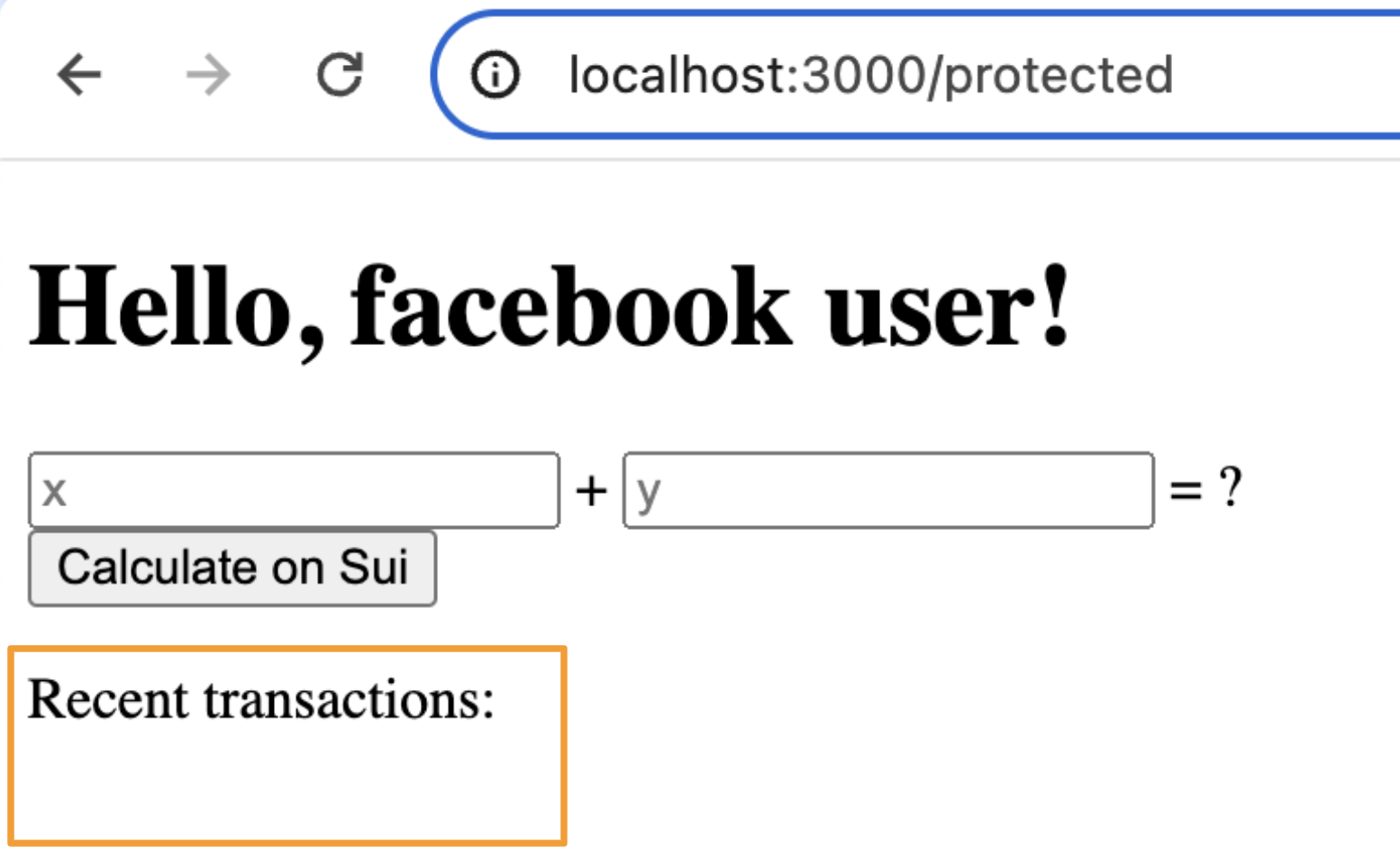
If you click "Sign out" in your localhost tab and then sign in via the same `(OpenID provider,username)` pair, you'll have the same zkLogin wallet address. Signing in with a different combination will create a different address (see more info on what makes up a zkLogin address in our [zkLogin wallet API doc](/api-docs/sui/wallet-services/zklogin-wallet-api#zklogin-addresses)). As you can see, if I go back to [http://localhost:3000/](http://localhost:3000/) and sign out
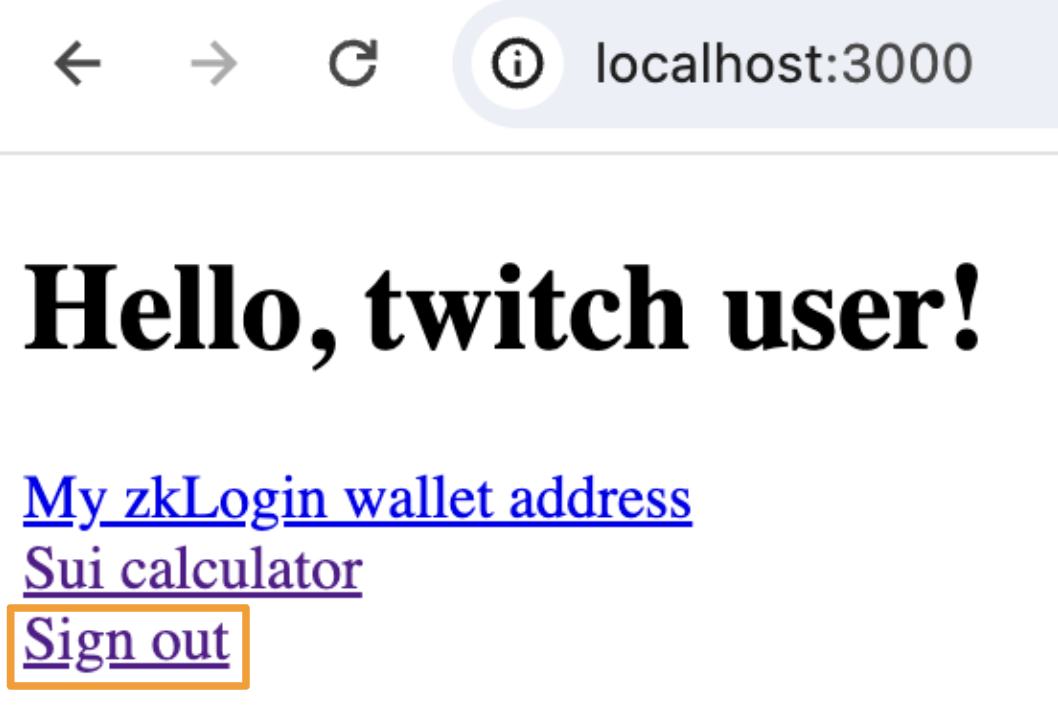 and then log in with Facebook, I have no recent transactions because this is a different address:
 ## Conclusion
You've just successfully set up and run a zkLogin app that creates zkLogin wallets and executes sponsored transactions for them! For more information on zkLogin, see:
* Our [zkLogin wallet API](/api-docs/sui/wallet-services/zklogin-wallet-api)
* The [Sui Foundation's documentation about zkLogin](https://sui.io/zklogin)
## Conclusion
You've just successfully set up and run a zkLogin app that creates zkLogin wallets and executes sponsored transactions for them! For more information on zkLogin, see:
* Our [zkLogin wallet API](/api-docs/sui/wallet-services/zklogin-wallet-api)
* The [Sui Foundation's documentation about zkLogin](https://sui.io/zklogin)